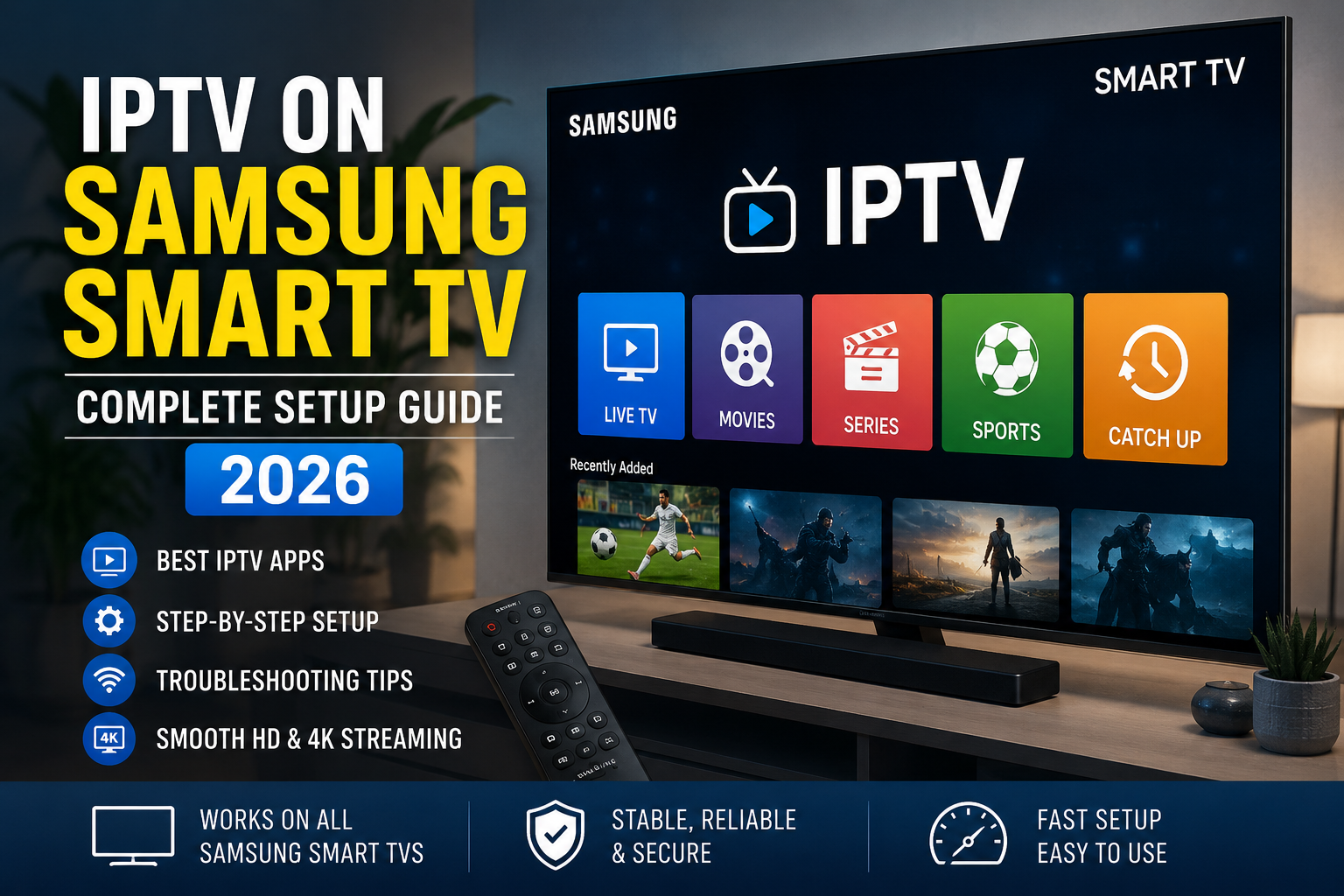
IPTV on Samsung Smart TV: Complete Setup Guide (2026)
Samsung Smart TVs are among the most popular entertainment devices in the world. Thanks to their excellent picture quality, user-friendly interface, and powerful Tizen operating system, they provide an ideal platform for IPTV streaming. Whether you enjoy live sports, movies, international channels, or TV series, setting up IPTV on a Samsung Smart TV is easier than many people think.
Moreover, modern Samsung televisions support several IPTV applications, allowing users to enjoy thousands of channels without requiring additional hardware. As a result, many cord-cutters are switching from traditional cable services to IPTV solutions.
In this complete guide, you’ll learn how to install IPTV on Samsung Smart TV, discover the best IPTV apps, understand different login methods, and optimize your streaming experience for the best performance.
What Is IPTV?
IPTV, or Internet Protocol Television, is a technology that delivers television content through the internet instead of traditional satellite or cable networks. Consequently, users can stream live TV channels, movies, and on-demand content using compatible devices.
Unlike conventional television services, IPTV provides greater flexibility and allows viewers to access content whenever they want. Furthermore, IPTV subscriptions often include thousands of channels from different countries, making them an attractive option for households seeking more entertainment choices.
Because Samsung Smart TVs offer excellent display quality and reliable performance, they have become one of the preferred devices for IPTV streaming. check out
Can You Install IPTV on Samsung Smart TVs?
Yes. Most Samsung Smart TVs running the Tizen operating system support IPTV applications. Therefore, users can install IPTV players directly from the Samsung App Store without purchasing external devices.
In addition, several IPTV apps are specifically optimized for Samsung televisions. These applications act as media players and enable users to access their IPTV subscriptions using Xtream Codes or M3U playlist URLs.
Popular IPTV applications include:
- IPTV Smarters Pro
- Smart IPTV
- IBO Player
- SET IPTV
- Flix IPTV
- Smart STB
However, these applications do not provide channels themselves. Instead, they simply allow users to organize and stream content provided through their IPTV service.
If you’re searching for a reliable provider with thousands of channels and premium entertainment, you can explore the plans available at TuneInVision IPTV.
Requirements Before Setting Up IPTV on Samsung Smart TV
Before installing IPTV, make sure you have the following:
Samsung Smart TV
Most Samsung televisions manufactured after 2017 support IPTV applications. Nevertheless, updating your TV firmware is always recommended before beginning the installation process.
Stable Internet Connection
Since IPTV relies entirely on internet streaming, connection quality is extremely important. For example, HD channels typically require at least 20 Mbps, while 4K content performs best with speeds above 50 Mbps.
IPTV Subscription
You’ll also need an active IPTV subscription that provides:
- Username
- Password
- Server URL
- M3U Playlist URL (optional)
IPTV Player Application
Because Samsung TVs do not include IPTV support by default, you’ll need to install a compatible player.
Best IPTV Apps for Samsung Smart TV
Choosing the right application is essential for achieving smooth playback and a user-friendly experience. Fortunately, Samsung users have several excellent options.
IPTV Smarters Pro
IPTV Smarters Pro remains one of the most popular IPTV players available today. Besides offering a modern interface, it supports multiple features that enhance the viewing experience.
Key features include:
- Live TV channels
- Movies and TV series
- Electronic Program Guide (EPG)
- Catch-up functionality
- Multi-screen support
- Favorites management
Because of its ease of use, IPTV Smarters Pro is ideal for beginners and advanced users alike.
Smart IPTV
Smart IPTV has been widely used by Samsung TV owners for years. Although the application requires activation after the trial period, it provides excellent stability and compatibility.
Furthermore, Smart IPTV supports M3U playlists and offers simple navigation.
For additional information regarding installation, users can consult the official Smart IPTV setup guide.
IBO Player
IBO Player has gained significant popularity recently. Compared with some older applications, it offers faster loading speeds and an attractive interface.
Moreover, the application supports:
- Xtream Codes API
- M3U playlists
- EPG integration
- Channel categorization
Therefore, many Samsung Smart TV users consider IBO Player one of the best alternatives available.
SET IPTV
SET IPTV is another reliable choice. While its interface is relatively simple, the app delivers smooth performance and supports most IPTV subscriptions.
In addition, the setup process is straightforward, making it suitable for users who prefer simplicity.
How to Install IPTV on Samsung Smart TV
There are several methods available for setting up IPTV. Nevertheless, IPTV Smarters Pro remains one of the easiest solutions.
Method 1: Install IPTV Smarters Pro
First, turn on your Samsung Smart TV.
Next, navigate to the Apps section.
Afterward, search for IPTV Smarters Pro.
Once the application appears, install it and launch it.
When the app opens, select Login with Xtream Codes API.
Then enter:
- Username
- Password
- Server URL
Finally, click Add User.
Within a few moments, your channels, movies, and TV shows will begin loading automatically.
Because Xtream Codes synchronization is highly efficient, this method is generally recommended over M3U playlists.
Method 2: Install Smart IPTV
Another popular option involves using Smart IPTV.
Begin by opening the Samsung App Store.
Then search for Smart IPTV and install the application.
After launching the app, locate your television’s MAC address.
Subsequently, upload your M3U playlist through the Smart IPTV activation website.
Once completed, restart the application.
As a result, your IPTV channels should appear automatically.
Method 3: Using IBO Player
IBO Player offers a modern alternative with excellent compatibility.
To install it:
- Download IBO Player from the Samsung App Store.
- Launch the application.
- Write down the Device ID and Device Key.
- Visit the activation portal.
- Upload your playlist information.
- Restart the application.
After synchronization is complete, your channel list should become available.
Xtream Codes vs M3U Playlist
Most IPTV providers support two login methods.
Xtream Codes API
This method requires:
- Username
- Password
- Server URL
Because everything is synchronized automatically, Xtream Codes offers better stability and faster channel updates.
Furthermore, categories and EPG information are typically organized more efficiently.
M3U Playlist
Alternatively, users can import channels through an M3U URL.
Although this method works well, playlist management may require occasional updates. Therefore, many users prefer Xtream Codes whenever possible.
Best Internet Speed for IPTV Streaming
Internet speed plays a crucial role in streaming quality. Consequently, selecting the right connection can dramatically improve performance.
Recommended speeds include:
| Streaming Quality | Recommended Speed |
|---|---|
| SD | 10 Mbps |
| HD | 20 Mbps |
| Full HD | 25 Mbps |
| 4K Ultra HD | 50 Mbps |
Besides speed, connection stability also matters. Therefore, using an Ethernet cable instead of Wi-Fi often produces smoother playback.
Meanwhile, minimizing network congestion can help eliminate buffering and interruptions.
Samsung TV owners who use Firestick devices may also benefit from our guide on the best IPTV apps for Firestick, which explores several powerful streaming applications for different devices.
Common IPTV Problems on Samsung Smart TV and How to Fix Them
Although IPTV generally delivers a smooth viewing experience, occasional issues may arise. Fortunately, most problems can be resolved quickly without requiring technical expertise.
IPTV Buffering Issues
Buffering is one of the most common complaints among IPTV users. In many cases, the problem is related to internet speed, network congestion, or temporary server overload.
Fortunately, there are several ways to improve streaming performance.
Use a Wired Connection
Whenever possible, connect your Samsung Smart TV directly to your router using an Ethernet cable. While Wi-Fi is convenient, a wired connection usually provides greater stability and fewer interruptions.
Restart Your Router
Sometimes, network performance decreases over time. Therefore, restarting your modem and router can refresh the connection and improve streaming quality.
Reduce Network Usage
If multiple devices are downloading files or streaming videos simultaneously, IPTV performance may suffer. Consequently, limiting background activity can significantly reduce buffering.
Reboot the IPTV Application
Occasionally, simply closing and reopening the IPTV app is enough to restore smooth playback.
Furthermore, users experiencing persistent interruptions may find our guide on how to fix IPTV buffering issues helpful, as it explains several advanced troubleshooting techniques.
Channels Not Loading
Another issue users occasionally encounter involves channels failing to load.
Several factors may cause this problem, including:
- Expired subscriptions.
- Incorrect login credentials.
- Temporary server maintenance.
- Outdated IPTV applications.
Therefore, it’s important to verify your username, password, and server URL before attempting more advanced solutions.
Additionally, restarting the application often resolves minor loading issues.
Black Screen Problems
A black screen can be frustrating. However, the issue is usually easy to fix.
First, close the IPTV application completely.
Next, restart your Samsung Smart TV.
Afterward, reopen the application and check whether the problem has disappeared.
If the issue persists, uninstalling and reinstalling the IPTV player may restore normal functionality.
Likewise, updating the TV firmware can improve compatibility with newer applications.
EPG Not Working
The Electronic Program Guide (EPG) allows users to view schedules and channel information. Nevertheless, EPG data occasionally fails to load properly.
To solve the issue:
- Refresh your playlist.
- Restart the application.
- Update the IPTV player.
- Verify that your IPTV provider supports EPG data.
In most situations, the guide should reappear after synchronization.
How to Update Samsung Smart TV Software
Keeping your television updated is essential for maintaining optimal performance. Moreover, firmware updates frequently improve application compatibility and system stability.
Updating your Samsung Smart TV is relatively simple.
Step 1: Open Settings
Begin by pressing the Home button and navigating to Settings.
Step 2: Select Support
Next, scroll down and choose Support.
Step 3: Open Software Update
After that, select Software Update.
Step 4: Choose Update Now
Finally, click Update Now and allow the television to search for the latest firmware version.
Once the update has finished, restart the TV.
As a result, your Samsung Smart TV will benefit from improved performance and enhanced compatibility with IPTV applications.
Why Samsung Smart TVs Are Excellent for IPTV
Samsung televisions have become one of the preferred devices for IPTV streaming. Besides offering outstanding image quality, they provide several advantages that enhance the viewing experience.
High-Quality Displays
Samsung TVs are known for delivering vibrant colors and sharp images. Consequently, watching sports events, movies, and TV shows becomes even more enjoyable.
Fast Processing Power
Modern Samsung televisions include powerful processors that help applications run smoothly.
As a result, users experience faster loading times and better navigation.
Tizen Operating System
Samsung’s Tizen operating system supports numerous IPTV applications. Furthermore, the interface is intuitive and easy to navigate.
Because of this flexibility, users can install multiple IPTV players and choose the one that best suits their preferences.
4K and HDR Support
Many Samsung Smart TVs support 4K Ultra HD and HDR technologies.
Therefore, users with high-speed internet connections can enjoy exceptional picture quality and immersive entertainment.
No Additional Hardware Required
Unlike older televisions, Samsung Smart TVs can run IPTV applications directly.
Consequently, users do not necessarily need external devices such as Android boxes or streaming sticks.
Tips for Getting the Best IPTV Experience
Although installation is relatively straightforward, following a few best practices can further enhance performance.
Use High-Speed Internet
A stable connection remains one of the most important factors affecting IPTV quality.
Generally, speeds above 25 Mbps are recommended for Full HD streaming, whereas 50 Mbps or more is ideal for 4K content.
Keep Applications Updated
Developers frequently release updates that improve performance and fix bugs.
Therefore, checking for updates regularly can help maintain a smooth viewing experience.
Restart Devices Occasionally
Even powerful devices benefit from occasional reboots.
In fact, restarting your TV and router from time to time can eliminate temporary issues and improve responsiveness.
Choose a Reliable IPTV Provider
The quality of your IPTV experience depends heavily on the service you use.
For this reason, selecting a provider that offers stable servers, fast channel loading, and high-quality streams is essential.
Frequently Asked Questions
Can I Install IPTV on Any Samsung Smart TV?
Most Samsung Smart TVs running the Tizen operating system support IPTV applications. However, older models may have limited compatibility.
Which IPTV App Is Best for Samsung Smart TV?
IPTV Smarters Pro, Smart IPTV, IBO Player, and SET IPTV are among the most popular options available.
Ultimately, the best application depends on your preferences and the features you require.
Do I Need an Android Box?
No. Samsung Smart TVs can run IPTV applications directly.
Nevertheless, some users prefer external devices for additional customization options.
Can Samsung TVs Stream 4K IPTV Channels?
Yes. Many Samsung televisions support 4K streaming.
However, you’ll need a fast internet connection and a provider that offers Ultra HD content.
Is Wi-Fi Good Enough for IPTV?
Wi-Fi works perfectly for many households.
Nevertheless, an Ethernet connection generally provides greater stability and reduces buffering.
Which Login Method Is Better?
Xtream Codes API is usually considered the better option.
Besides offering automatic synchronization, it organizes categories and EPG information more efficiently.
Final Thoughts
Setting up IPTV on a Samsung Smart TV is easier than ever. Thanks to the flexibility of the Tizen operating system, users can install several IPTV applications and enjoy thousands of channels, movies, and on-demand programs directly from their televisions.
Moreover, Samsung TVs deliver exceptional picture quality and excellent performance, making them one of the best devices for IPTV streaming.
Whether you choose IPTV Smarters Pro, Smart IPTV, IBO Player, or SET IPTV, the installation process is relatively simple. Furthermore, with a stable internet connection and the right IPTV service, you can enjoy a premium entertainment experience without relying on traditional cable subscriptions.
As streaming technology continues to evolve, Samsung Smart TVs will undoubtedly remain among the top choices for IPTV enthusiasts looking for convenience, quality, and versatility.